How do you create a map with multiple locations?
Enter locations as a list or addresses in mapstudio.ai, the AI places them at their real geographic positions. Pick a style, download as PNG or PDF. No GIS software, no manual placement.
Pay-per-download · Print-ready maps · Commercial license included
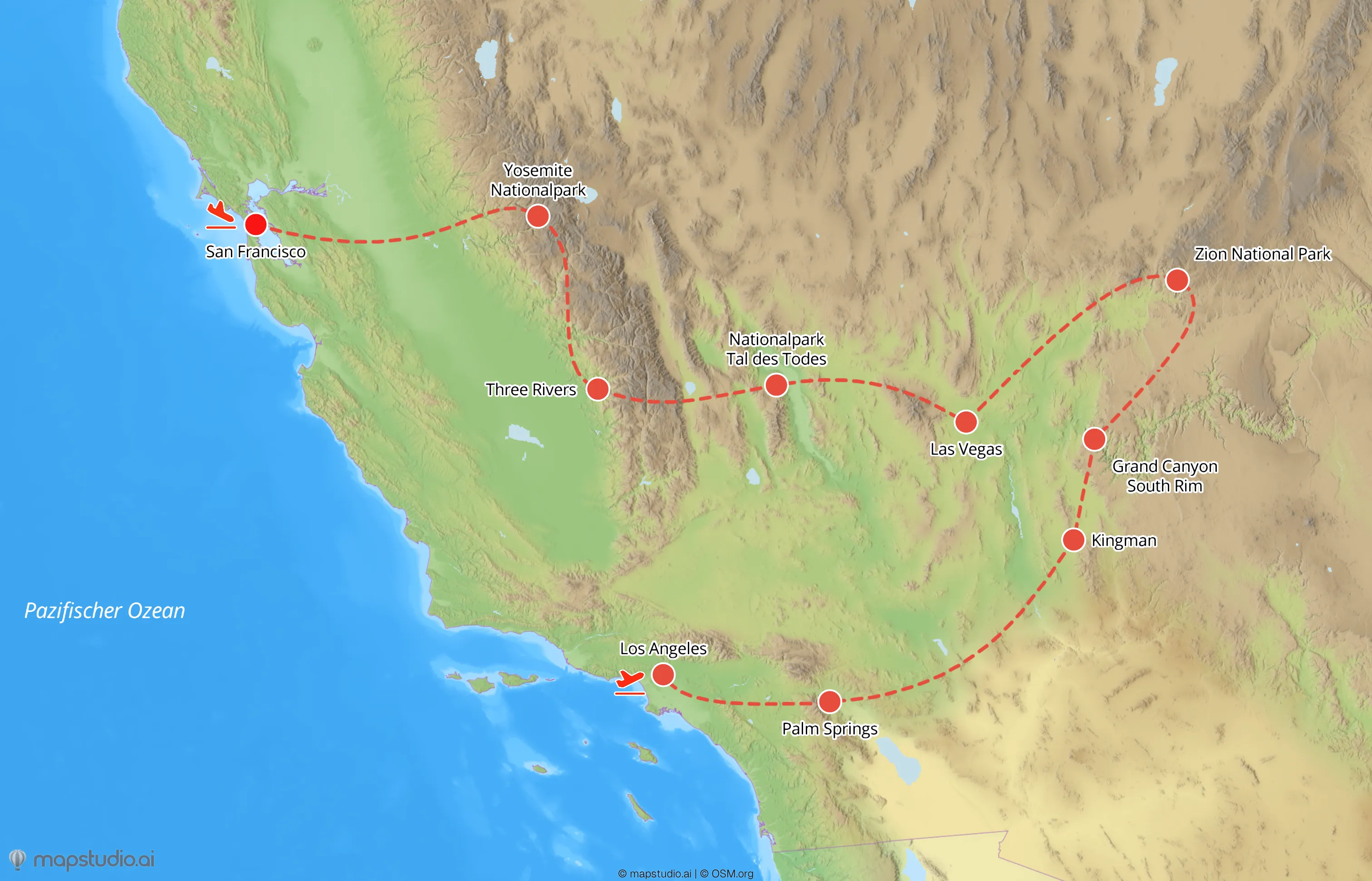
The short version
A map with multiple locations comes together in four steps: (1) prepare the location list (places, addresses, or coordinates), (2) enter them in mapstudio.ai as text or a structured list, (3) pick a map style and pin design, (4) download as PNG or print-ready PDF. The AI handles geocoding and labelling, you don't need GIS software or prior knowledge.
Create a location map in four steps
- 01
Prepare the location list
Collect the locations that should appear on the map. Place or city names usually suffice. For more precision, use addresses (street, number, postal code, city) or coordinates (latitude, longitude). A flat list of 5 to 20 locations works best, beyond that, the map gets crowded quickly.
- 02
Enter locations in mapstudio.ai
In the map editor, enter the list as text (e.g. "Offices: Berlin, Hamburg, Munich, Cologne, Frankfurt") or upload a structured list. The AI handles geocoding and places the pins at their real geographic positions. For ambiguous names (e.g. multiple "Frankfurt"), the AI asks back or you clarify with region or country.
- 03
Adjust style and pin design
Pick a map style that fits: Atlas for classic overviews, Relief for topographic context, Flat for modern editorial looks. Pin size, color, and labels can be adjusted per map or per location. Highlight important locations with larger pins or your brand color.
- 04
Download the map
High-resolution PNG (up to 5,000×5,000 pixels) for web, social, and pitch decks. Print-ready PDF in CMYK color space for print layouts or marketing material. The download comes with a commercial license for all use cases.
What makes a good location map
Frame the map to its content
If all locations sit in Germany, a Germany frame shows more detail than a Europe frame. If they're spread across multiple countries, you need a wider frame. The editor lets you adjust the map frame manually.
Use a hierarchy when you have many pins
With 15+ locations, a visual hierarchy helps: headquarters or focus locations larger and in the brand color, side locations smaller and in a secondary color. The map stays readable even when it summarizes many points.
Keep labels short
Pin labels should be short (1-2 words), otherwise they overlap. For long place names, city or district is usually enough. Detailed info belongs in a legend or accompanying text, not on the map.
Update instead of re-create
When locations change (new office, closed branch), the existing map in your workspace can be adjusted and re-exported. The visual style stays consistent across the workspace, even when the data changes.